
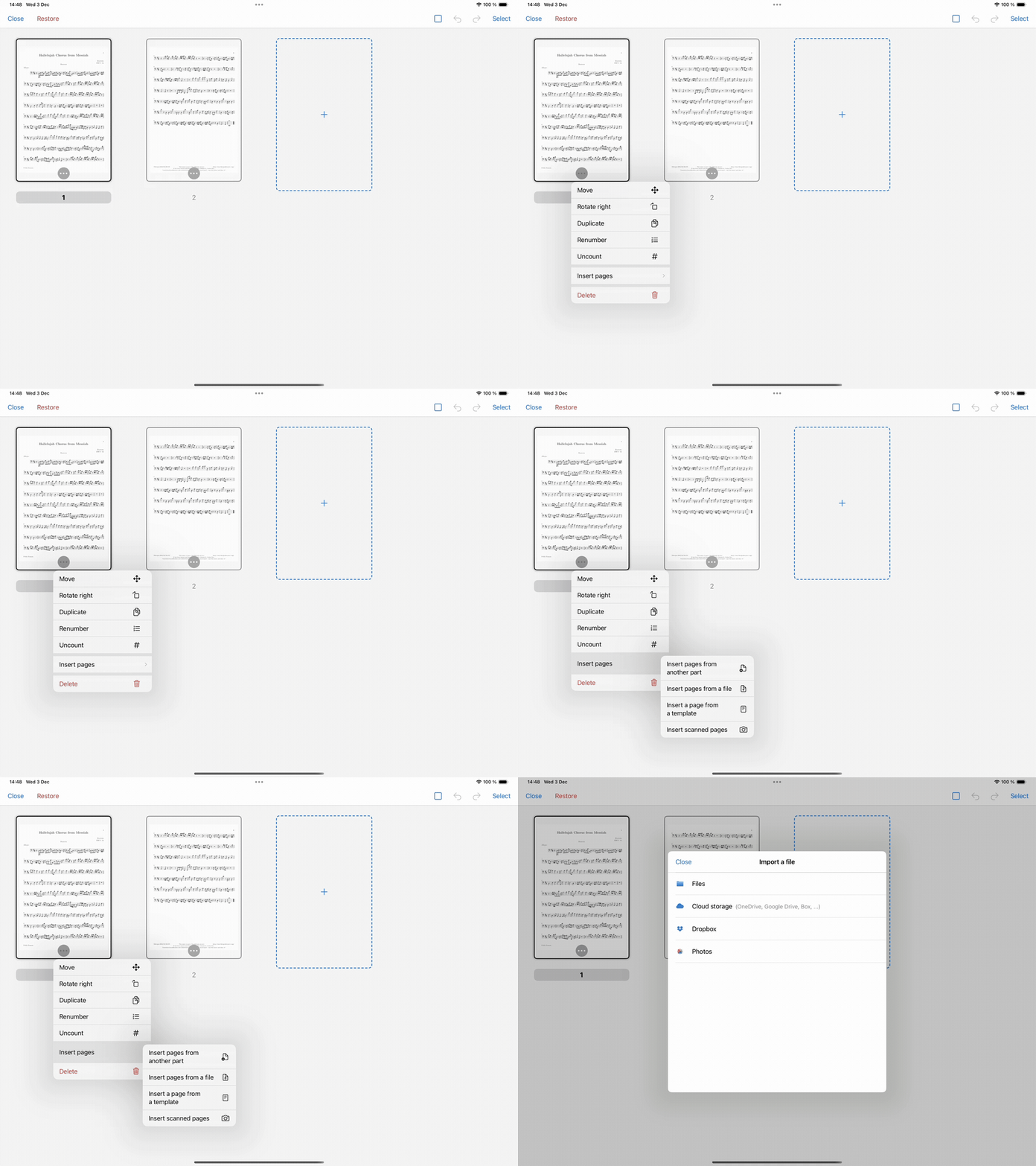
To add pages to a PDF part, tap on "Rearrange" in the Features menu.
Then, tap on the "..." button located on the page thumbnail after which you wish to insert pages.
At this point, you can either insert pages from:
- another part in the library
- a file located on an external drive (Files app, Dropbox, Google Drive), a photo (from the Photo Library)
- a template (from the template library)
- a scanned score
Please note that if you reset your rearrange actions, added pages will be deleted.