
You can group setlists together using Folders.
Folders helps you create a simple hierarchy in your library. Setlists can belong to only one folder and folders cannot be nested.
This allows you to do things like create an “archived” folder for setlists you want to keep but aren’t currently using.
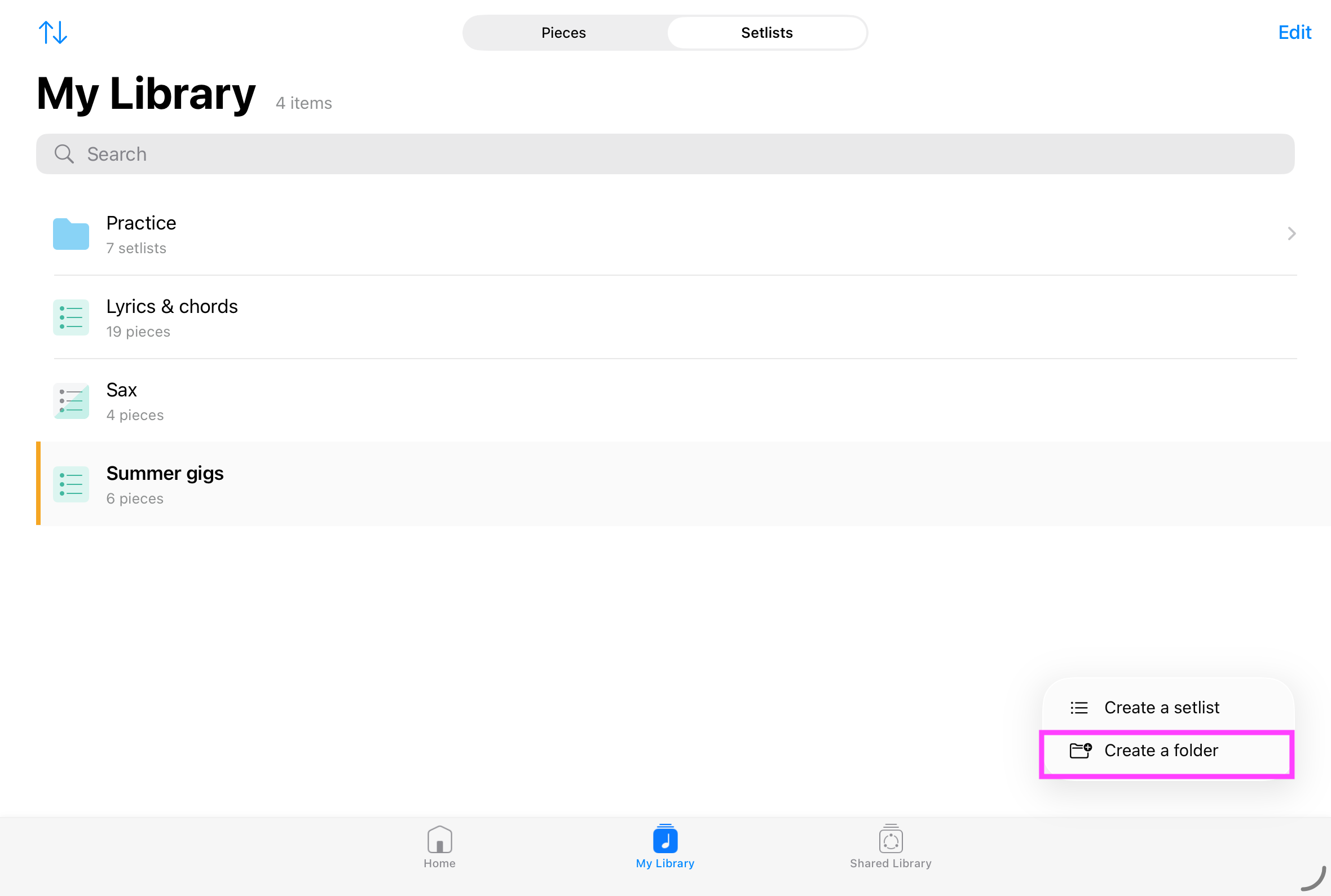
Creating a folder
From the Setlists screen, click on the Create a folder option in the (+) button menu (bottom right corner), enter a name and create your folder.
Moving setlists to a folder
To move setlists into a folder, you can either use:
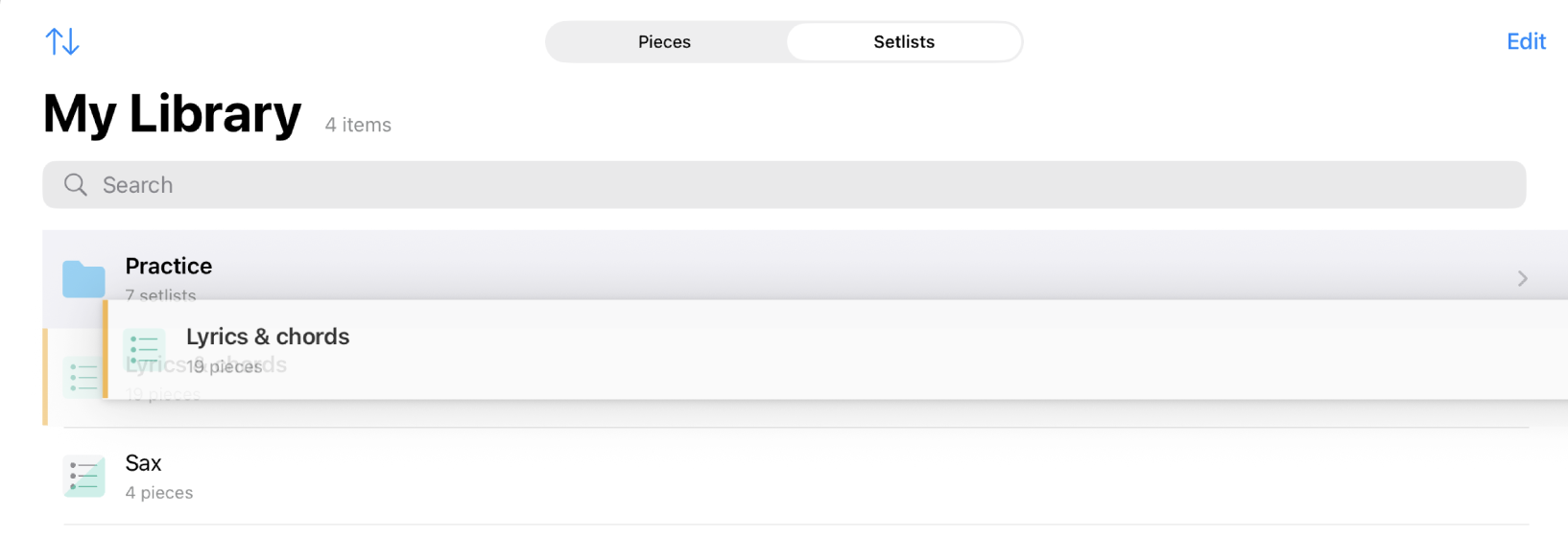
- Drag and drop: long press on a setlist and drag it to the folder of your choice
- Move a batch of setlists (tap on Edit button):
- Select a single or multiple setlists and drag them to the folder of your choice
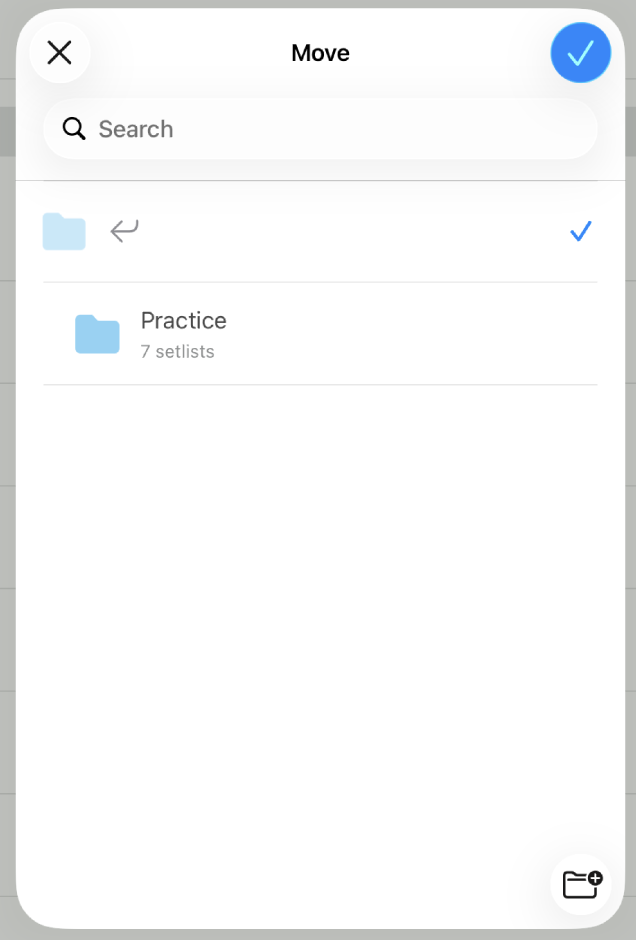
- Tap on the "..." button and select the Move option
- Setlist's contextual menu: long press on a setlist row and select the Move option in the contextual menu
Moving setlists back to the top of the hierarchy can be achieved by selecting the Root folder (⏎) in the folder list
Deleting a folder
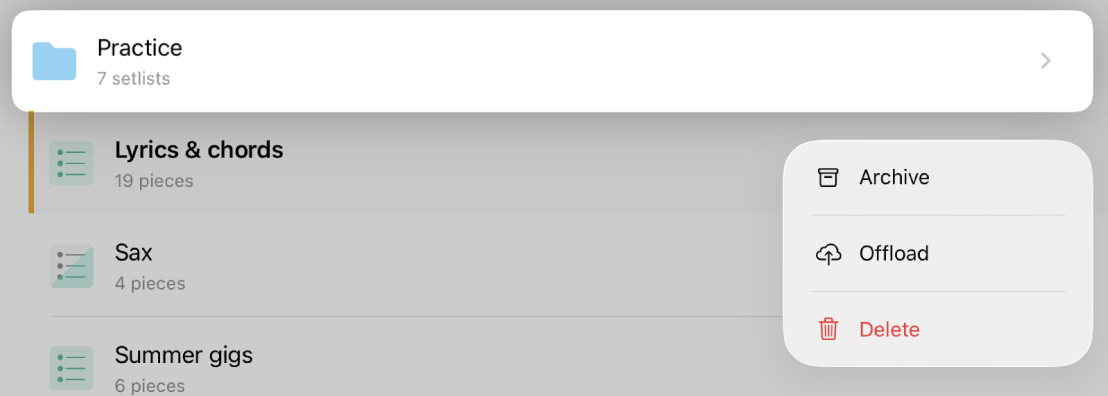
Long press on the folder you want to delete, then click on the delete button and confirm.
You also delete a folder in Edit mode, from the "..." options menu.
Note: the setlists contained in the folder will be put back at the top of the hierarchy