
MIDI commands are a feature associated with scores that enable them to interact automatically with your MIDI devices. Unlike the MIDI action in Smart Buttons (which requires a tap), MIDI Commands work on their own — broadcasting messages the moment a score opens, or switching to a score the moment a MIDI message arrives.
Note: In order to communicate with your MIDI devices, you first need to setup and enable MIDI connections via the MIDI settings menu.
Two modes: Send and Open
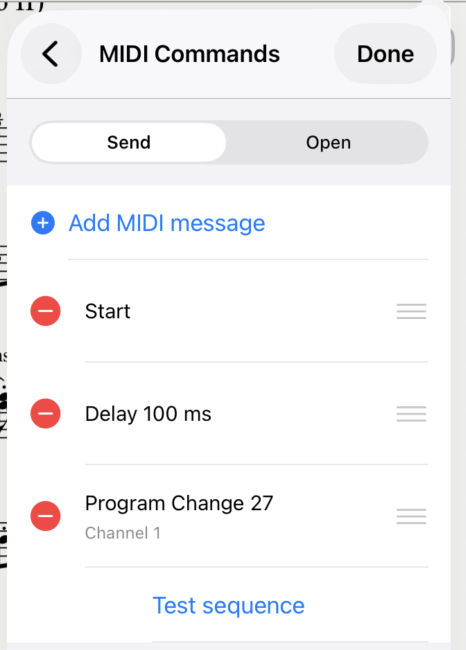
Send — When this score opens, Newzik automatically broadcasts a sequence of MIDI messages to your connected devices. Use this to instantly reconfigure a synth, effects unit, or lighting rig the moment you switch to a piece.
Open — Assign one incoming MIDI message as a trigger. When Newzik receives that message from your hardware, it automatically opens this score. Use this to switch between scores hands-free from a foot pedal or controller.
How to set it up
- Open a score and go to Score Settings → MIDI Commands.
- Select the Send or Open tab depending on what you want to configure.
- Tap Add MIDI Message and choose a message type.
- Fill in the parameters (channel, value, etc.) and tap Test to verify it works.
- Tap Done to save.
On the Send tab, you can add as many messages as needed and reorder them by dragging. On the Open tab, only one trigger message is allowed.
Supported message types
- Program Change — switch instruments/patches, with optional Bank Select (MSB/LSB)
- Control Change — send any CC message (volume, pan, expression, modulation, etc.)
- Note — trigger a note at a specified velocity and channel
- Song Select — select a song slot (0–127)
- System Real-Time — Start, Continue, or Stop
- SysEx — send raw hex-encoded system-exclusive data
- Delay — insert a wait (up to 10 seconds) between messages in the sequence
Learning from hardware
Enable Listen to MIDI Events at the bottom of the screen to capture messages directly from your controller. While listening, any incoming MIDI event is automatically added to the current tab — handy for configuring the Open trigger (or the Send messages) without having to manually enter note or CC values.
Testing
- Tap Test on an individual message to send it immediately and verify your device responds.
- On the Send tab, tap Test Sequence to run the entire sequence end-to-end in order.
Typical use cases
• Live switching — configure your sound system, amp channel, or effects preset automatically every time you open a specific score.
• Hands-free navigation — assign a foot pedal's Control Change message to open a score without touching the screen.
• Sequencing — send a Start command followed by a Program Change so your backing track and sound module are both in sync the moment you open a piece.
• Complex rigs — chain multiple Program Change and Control Change messages with delays to ensure each device has time to process before the next one fires.