
Smart Buttons are interactive controls you place directly on a score page. Tap one to instantly trigger an action: start the metronome, send a MIDI command, jump to another piece, cue a backing track, and more, without leaving your music.
To create or edit a button, simply open the Smart Buttons feature from the “...” menu on your score, or long-press an existing button.
Creating a Smart Button
- Open a score and enter Smart Buttons editing mode.
- Tap anywhere on the page to drop a button at that position.
- Choose an action type and configure its parameters.
- Save — the button is now permanently embedded on that page.
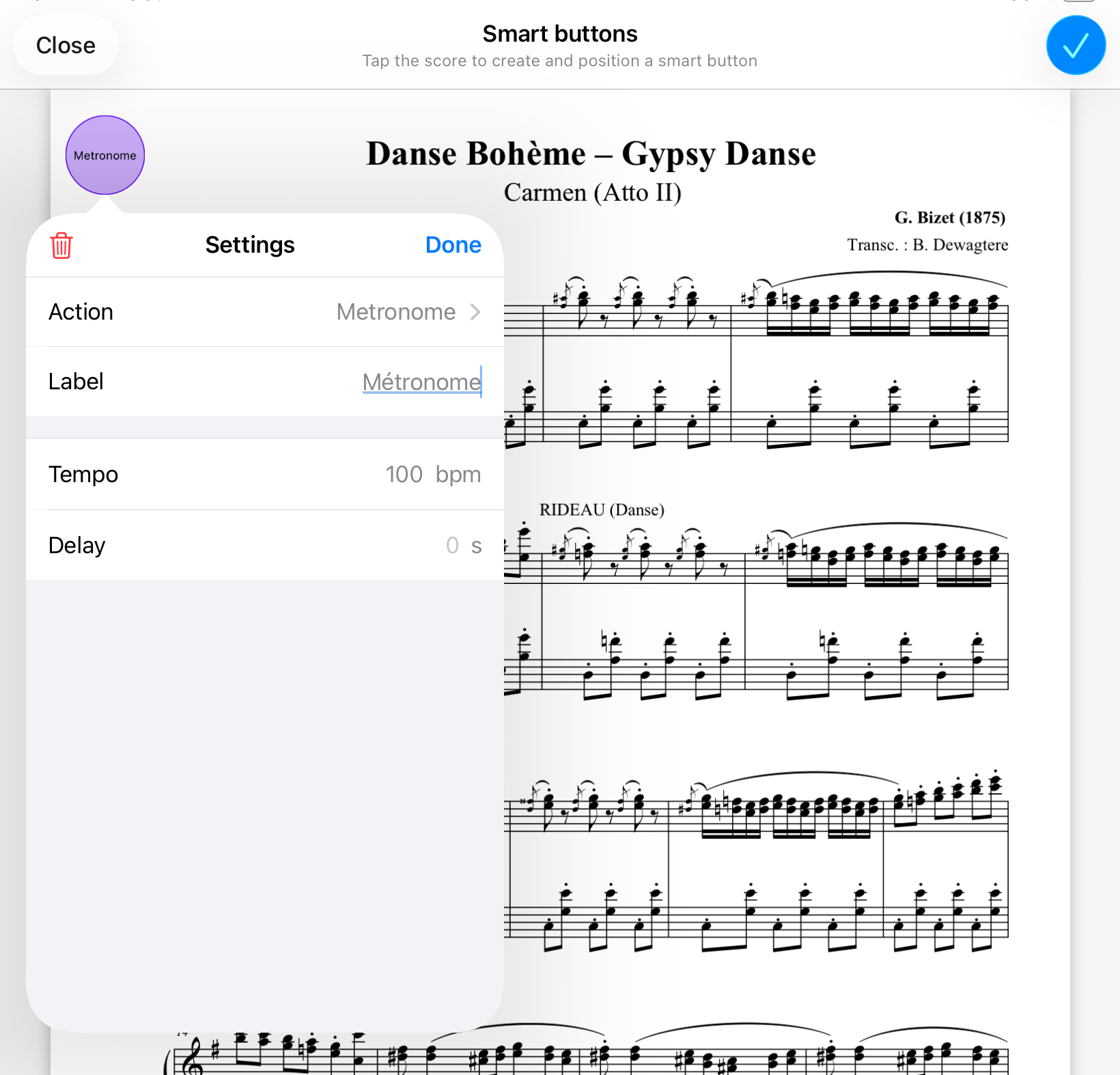
Action Types
- Metronome: Starts the metronome at a set tempo, with an optional delay before it begins.
- Change Tempo: Adjusts playback tempo to a specific BPM.
- Pitch: Plays a reference pitch at a chosen note, octave, and instrument sound.
- MIDI: Sends one or more MIDI messages in sequence (Program Change, Control Change, Note, SysEx, and more).
- Navigation: Jumps to the next piece, previous piece, or a specific score and page.
- Open and Play Media: Opens and plays an attached audio or video file, with optional delay and start-time offset.
- Play / Pause Media: Toggles playback of the currently loaded media.
MIDI Buttons in Detail
A MIDI button can send a full sequence of messages in order. Supported message types include:
- Program Change — switch instruments/patches, with optional Bank Select (MSB/LSB)
- Control Change — send any CC message (volume, pan, expression, modulation, etc.)
- Note — trigger a note at a specified velocity and channel
- Song Select — select a song slot (0–127)
- System Real-Time — Start, Continue, or Stop
- SysEx — send raw hex-encoded system-exclusive data
- Delay — insert a wait (up to 10 seconds) between messages in the sequence
Use Test to verify a single message, or Test Sequence to run the entire sequence end-to-end. Enable Listen to MIDI Events to learn a command directly from an external controller.
Note: In order to communicate with your MIDI devices, you first need to setup and enable MIDI connections via the MIDI settings menu.
Privacy
In scores shared in Projects , a privacy settings allows to set buttons as:
- Public: visible to all members of the Project
- Private: only visible by you (default value)
In organization Projects, only admins are allowed to create or edit Public buttons.
Typical Use Cases
- Concert: Trigger backing tracks or send instrument changes to a connected device at the correct point in the score.
- Personal Practice — Tap to start the metronome at the tempo of a difficult passage, right where it appears on the page.
- Navigation — Build a setlist sequence by automatically moving from the last page of one song to the first page of the next.
- Tuning — Place a tuning button at the beginning of a song to quickly provide a reference note for the entire ensemble.